CMP-03 Recall Report
In-stock quantities per lot and SKU - the recall exposure list.
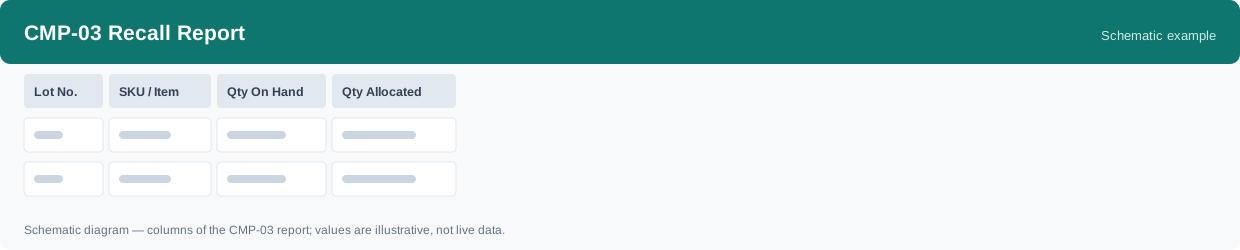
This report shows in-stock quantities per lot and SKU: for each lot and SKU it shows the quantity on hand and the quantity already allocated. It is the recall exposure list. It uses real-time data, so the quantities reflect stock as it stands when you run it.
What this report is for#
Use it at the start of a recall: given a recalled lot or SKU, it lists how much of it is still in the warehouse — on hand or already allocated — so the exposure inside the warehouse is known first. Quantities already shipped are not in this list; they are followed in the outbound detail named in the counting notes below.
How the numbers are counted#
Recall exposure = stock still on hand or allocated for the recalled lot/SKU. Already-shipped quantities for the same lot are in outbound detail (OUT-06).
Each row is one lot number and one SKU.
Dimensions and filters#
- Lot No. — the lot number
- SKU / Item — the product
- Qty On Hand — quantity currently on hand
- Qty Allocated — quantity already allocated
- Filters you can set: Warehouse, Client
How to read it#
Read on hand and allocated together for the recalled lot or SKU: both parts are exposure, because exposure in this report means stock still on hand or allocated. If you also need the part that already left the warehouse, read the outbound detail (OUT-06) with the same lot — do not treat this list alone as the full recall picture.
Typical uses#
- Build the in-warehouse exposure list for a recalled lot or SKU
- See how much of the recalled stock is already allocated
- Continue to OUT-06 with the same lot for quantities already shipped
Reports features used in this article: pick this report in Reports, set the date range or warehouse filter and click Run to see the result; use Export to download the result as a CSV file; or use Subscribe to have the same view sent to your inbox on a schedule.
Note on subscriptions: your subscription and its filters are saved right away. Scheduled email delivery is being switched on in stages — sending starts as soon as delivery opens for your organization.