LAB-01 Units per Hour (UPH) by Employee
Tasks per hour by worker and task kind from approved time entries. Warehouse staff hours — not driver hours of service.
This report shows tasks per hour by worker and task kind, derived from approved time entries. It covers warehouse staff hours — not driver hours of service. It is refreshed daily.
What this report is for#
Use it to see the hourly pace of each worker for each kind of work: to compare individual output fairly within the same task kind, to follow how a worker develops month by month, and to spot where coaching or a process change may be needed. It is about warehouse work pace, not about driver hours.
How the numbers are counted#
Tasks per hour = time entries divided by net hours (net seconds / 3600), by worker, task kind and month, from labor time entries linked to tasks. Net seconds are shown so the rate can be rechecked. The rate is per row - do not add across rows.
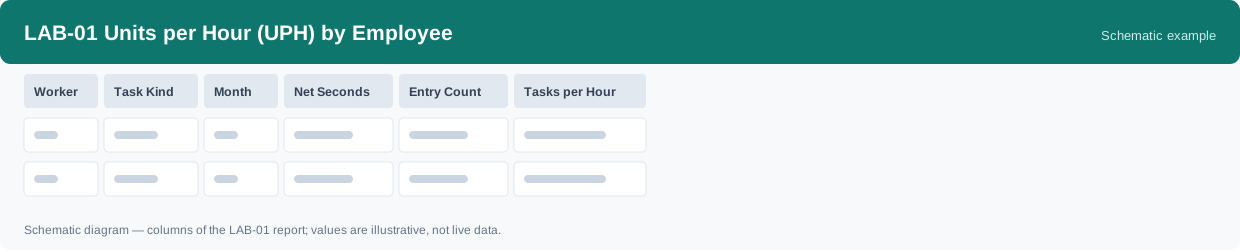
Each row is one Worker, one Task Kind and one Month.
Dimensions and filters#
- Worker — which worker the time entries belong to
- Task Kind — what kind of work the entries cover
- Month — which month the entries belong to
- Net Seconds — net working time in seconds, shown so the rate can be rechecked
- Entry Count — how many time entries were counted
- Tasks per Hour — time entries divided by net hours for that row
- Filters you can set: Date range
How to read it#
Read each rate on its own row: the tasks-per-hour figure belongs to that worker, that task kind and that month only, and rates must not be added across rows. When a rate looks surprising, recheck it with the two columns beside it — the entry count and the net seconds — before drawing a conclusion: a row built on very few entries or very little net time is a thin sample, not a stable pace.
Typical uses#
- Compare workers within the same task kind for a month
- Follow one worker month by month to see how the pace develops
- Recheck a rate from its entry count and net seconds before acting on it
- See which task kinds run faster or slower for planning and coaching
Reports features used in this article: pick this report in Reports, set the date range or warehouse filter and click Run to see the result; use Export to download the result as a CSV file; or use Subscribe to have the same view sent to your inbox on a schedule.
Note on subscriptions: your subscription and its filters are saved right away. Scheduled email delivery is being switched on in stages — sending starts as soon as delivery opens for your organization.