Picking: waves, pick tasks, and PICK-STAGE
Release waves (manual or scheduled), generate pick tasks per order, and execute step-by-step on the phone — including partial picks, skips and shorts.
Wave release#
A wave groups outbound shipments (wms_shipments) by client × filter, chunks them by order count, and releases them as a wave; each shipment in the wave then gets its own pick task. Two entry points: manual release (desktop wave/manual) and scheduled release (scheduler + external cron). Only shipments with status commit/draft/ready are eligible; shipments already locked by an unfinished wave (draft/released/picking) are excluded from new matches.
- Wave Filter: conditions [{field, operator, values[]}], operators in/not_in/eq/ne/gt/lt/gte/lte (wave/filter).
- Dispatch Setting: customer_filters [{merchant_id, filter_id}], max/min order qty per plan, default_pick_method (order / cluster / wave / wave_by_item, default order), is_active (wave/settings).
- Scheduler: work_days (1=Monday … 7=Sunday, default 1–5), time_from/time_to, step_minutes, is_active (wave/scheduler).
- Cutoff times: per client/carrier, HH:MM (wave/cutoff-time).
- Pick a Customer (required) + 1 or more Dispatch Settings → Preview: returns each setting’s matched order count + per-group detail without creating a wave.
- Optionally override min/max_qty_per_batch (Min ≤ Max is validated).
- Release: builds the wave — wave_no = WV-YYYYMMDD-NNNN, status=released (a wave is born released; there is no draft intermediate state), shipment_ids holds the outbound shipment ids.
- After release, the page lists the wave’s shipments — Create Pick Task per shipment (see below).
- Scheduled release: an external cron POSTs /api/wms/wave/scheduler/run every N minutes (with x-cron-secret). It only runs schedulers whose weekday is in work_days, whose current time is within time_from~time_to, and whose last run was ≥ step_minutes ago.
Generating pick tasks#
- Three entry points: the released wave page, bulk-selecting shipments in the order list → Create Pick Task, or Create Pick Task on the order detail.
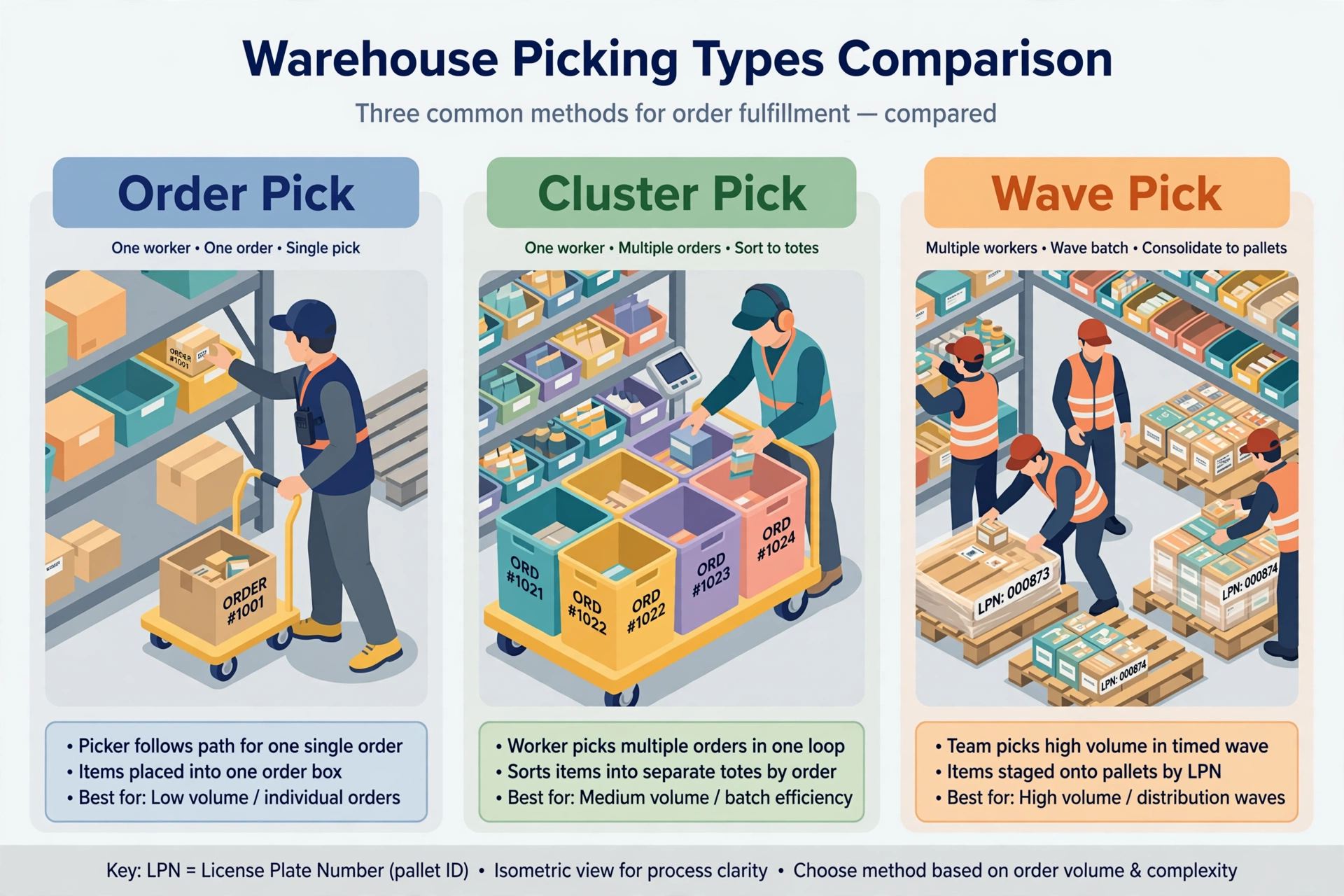
- pick_method=order: one task per order. Task lines = order lines × system-allocated locations (pick zone first; shortages create lines at the actually allocatable qty with the remainder in warnings).
- pick_method=cluster (Cluster Pick, formerly called batch): one task holds many orders — each order gets its own tote on the picking cart. Rows for the same product from the same location are merged across orders (see Cluster Pick below).
- Path planning: each line gets a seq by location travel order, and the phone guides the worker location-by-location, qty-by-qty.
- Duplicate protection: an order with an unfinished pick task that still has pending lines cannot generate again; quantities left over as short may be re-generated later.
- After generation, the order’s pick task field is written back with a link to the task detail.
Cluster Pick: many orders, one cart#
Cluster Pick merges many orders into one task and picks them together from a picking cart (tote cart): each order occupies one tote, and you pick while splitting into totes (pick-once, split-into-totes). The same product from the same location is merged into one step across orders; the per-tote split is recorded on the line (tote_splits).
- Scan the cart first: before starting, scan the picking cart barcode to bind it (POST /api/wms/pick-tasks/[id]/bind-cart). Binding flips the task to in_progress and assigns one tote per order in shipment-number order; if the cart does not have enough totes the bind is rejected. When the task is done the cart can be released by hand (release-cart).
- Confirm per tote: tap Confirm on each tote as you fill it — you do not have to enter the total quantity first. Confirmed totes are saved immediately (they survive a phone interruption); reopen the task later and keep going where you left off.
- Removing an order: an unconfirmed order can be taken out of the task (remove-shipments) before it is confirmed; its tote goes back to free.
Executing on the phone#
One step = one product × one location. Each step submits four fields: pick-from location, pallet LPN (storage locations only), pick-to LPN (the target tote), picked QTY. The phone UI walks you through in three steps (step indicator on top): Step 1 scan/select the Pick-from location; Step 2 scan the pallet (storage locations), then enter the quantity right there — picking locations enter the quantity directly; the quantity is asked only once, in this step; Step 3 scan the Pick-to LPN and tap Pick to confirm. Suggested and listed locations carry a (picking location) / (storage location) suffix so you know before scanning whether a pallet prompt will follow.
- Scan/type the from location → Enter: invalid → top error + input fully selected; valid → go to Step 2: a storage location first shows the pallet LPN box (the quantity follows right after the pallet scan), a picking location shows the quantity directly.
- Scan/type the to LPN → validated (must be a tote assigned to the task) → tap Pick to confirm. The quantity is not asked again — Step 3 submits the quantity entered in Step 2.
- Quantity (digits only) is entered in Step 2; an entry above the remaining quantity is rejected there. Confirming in Step 3 moves to the next step. Failures keep you on the step with the error shown.
- Partial pick: asked 10, picked 5 → records 5 picked and auto-adds a qty=5 step to the tail of the queue; you’ll come back to it.
- Next: skip the current step; the queue comes back to it later. Skipping a system-suggested location (the Next button next to Suggest loc) requires a reason (mandatory; skip reasons are maintained by admins in Master Data → reason-codes). The skip is logged and the next suggestion is shown; when the suggestions run out you pick freely.
- Force close (top-right): close a partial pick directly; the system settles on the actually picked quantities.
- Short: the location has no stock or the goods are damaged → mark short; the task can still complete and the remainder can be re-generated later.
- Damaged pallet label: if the source pallet cannot be found by its label, the error says what to do next. Check the label and scan again; if the label is damaged, tap "Damaged label? Ask a supervisor to approve". The list only shows people who can approve: organization admins/owners and staff whose job title is marked supervisor level (People → Job Titles). The supervisor taps their own name and the pick is resubmitted with the approval recorded in the audit log. You cannot approve your own release.
LTL / FTL: drop to staging#
LTL and FTL pick tasks don’t finish at the dock door: when you tap Close task, the phone first asks for a staging location. Scan or pick the staging location where the pallets will be dropped — it must be a location of type staging, anything else is rejected. One task drops to one staging location; tap “Confirm drop-off” and the task completes with the staging location recorded.
- Only LTL / FTL pick tasks see this step — small parcel tasks keep the original confirm dialog.
- The location is validated on scan: a non-staging location is rejected with “not a staging location” — pick the right one and try again.
Return to Stock: put picked goods back#
Picked the wrong item, or the order got cancelled mid-pick? On the phone, open the pick task execution page → the “…” menu → Return to Stock. Choose a reason (task cancelled, order cancelled, wrong item, wrong quantity, other) and submit: the system creates a putaway task that carries the goods back to stock, and the linked outbound order rolls back from picking to allocated, ready to be picked again.
- Every return lands on the order’s Put Back History tab: SKU, returned quantity, reason, the return location (“Pending” until the putaway is done), who started it and when.
- If the reason is “order cancelled” and the linked OMS order is cancelled, the WMS shipment is cancelled along with it.
Target totes and PICK-STAGE#
Order-pick target totes belong to the PICK-STAGE location (one per warehouse, location_type=staging; auto-created by the system if missing and hidden from the UI). Generate them in WMS → Pallets with the “Batch generate LPN” button: pick the warehouse (defaults to current) + count N (1–200, default 10). The backend generates LPN-{seq} (unified prefix; existing PLT- prefixes are untouched) with status=building and source_type=pick. Afterwards choose “Generate only” (close and refresh the list) or “Generate and print” (calls the label API per pallet through the print pipeline). Note: the picking cart (location_type=cart) is a movable location — a tote is an LPN (license_plate, tenant-globally unique) and tote picking books to the cart location_id the tote belongs to (the cart itself is the location). PICK-STAGE (staging) is the per-warehouse pick buffer; order-pick target pallets must belong to it — don’t mix the two.
Task states and review#
pending → in_progress (tap Start, or automatically on the first pick; the outbound shipment syncs to picking) → completed (all lines picked or short; the shipment moves to picked). On completion the picked_qty is written back to the shipment lines and a replenishment check is triggered. Review: the desktop task detail page shows everything the phone submitted (from location / pallet LPN / to LPN / picked qty / every step record) — this is where you verify a pick; pack-level verification continues at the packing station (pack-verify).
Reassigning a task (2026-10-20): on the desktop task detail page, a button next to the assignee lets you reassign the task to another member. It only appears while the task is pending or in_progress — completed or cancelled tasks cannot be reassigned. In the picker dialog, search by name and pick a person (only names/emails are shown, never raw IDs); clearing the selection cancels the assignment. The change is recorded in the task timeline with the operator and time.
Claiming a task from the pool: tasks that nobody is assigned to yet wait in the task pool. On mobile, open Tasks and switch to the Task pool tab — it lists the unassigned, not-yet-started tasks of the current warehouse; tap Claim on a task and it becomes yours and moves into My tasks. Only one person can claim a task: whoever taps first gets it, and the other person sees a message that it was just taken. On desktop, an unassigned pending task shows a “Claim to me” button next to the assignee on the task detail page. Claiming and reassigning are two ways to hand out work: claiming is the worker picking work up, reassigning is the supervisor giving it out — both are recorded in the task timeline.