Putaway: locations, moves, and exceptions
How Docklify merges putaway into receiving, and how to move inventory afterwards — by pallet or by product — plus exception rules.
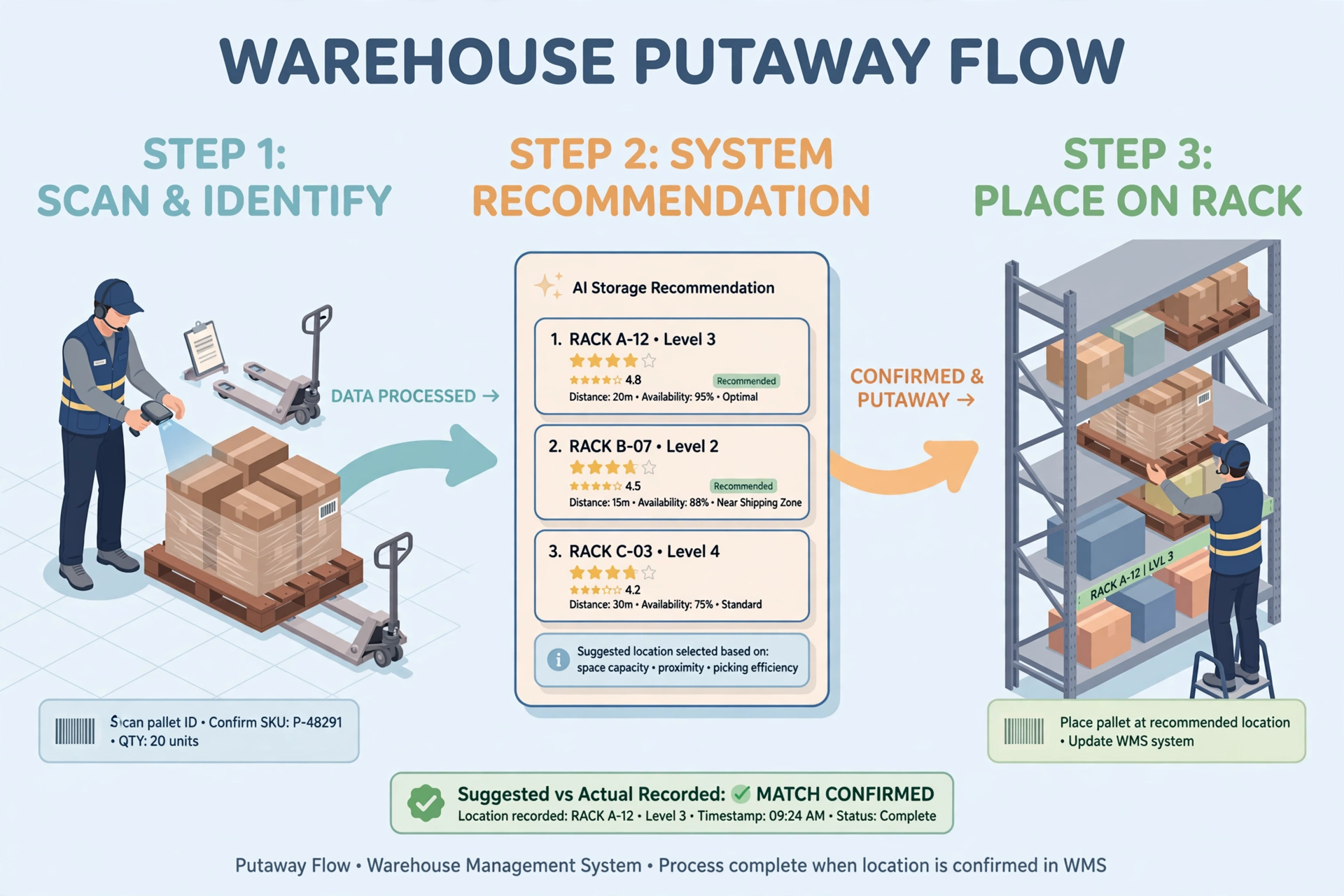
Putaway is merged into receiving#
There is no standalone “putaway task” execution in the current version — putaway is folded into the Receive step. In palletized receiving you pick a storage location per pallet; confirming Receive writes inventory to each pallet’s storage location in one shot, and putaway is done. In direct receiving the goods land on a picking location, so putaway is complete the moment they are received.
Goods just arrived — how do I put them away?#
You do not need a separate putaway step: putaway happens inside receiving. Work through the receipt as usual — in palletized receiving, choose a storage location for each pallet while you receive; when you confirm Receive, the stock is written to those locations and the goods are put away. In direct receiving, pick the picking location while receiving; the goods are on the shelf the moment receiving is confirmed. If the receipt generated putaway tasks instead, work them from the task list on mobile (see the next section).
Putaway tasks (mobile)#
When a receipt generates a putaway task, the task home shows the source receipt number and a pallet summary line (“N pallets in total · X put away · Y waiting”). Tap “···” in the top right and choose “Progress” to see every pallet on that receipt: each pallet’s LPN, product and quantity, and its status — put-away pallets show the location they landed in, the rest are marked “Waiting”.
To execute, tap “Start task”, then scan a pallet and a location as prompted. A pallet holding a single product can be put away as a whole pallet. If a pallet holds several different products, you are told right at the pallet-scan step that it cannot be put away as a whole pallet — put away each product separately instead. A pallet with no product details cannot be put away either; check the pallet first.
For a task that comes from a receipt or from a cross-dock pallet, the pallet picker only lists that task’s own pallets — each with its contents (products and quantities) — so you never have to hunt through every pallet in the warehouse. A task converted from a cross-dock pallet with just one pallet has that pallet filled in for you automatically: just scan the target location to confirm, and scanning any other pallet is stopped on the spot with a message naming the code you scanned and the pallet this task expects. On a receipt task, scanning a pallet from a different receipt is likewise stopped, with a note that the pallet is not on this receipt.
When a cross-dock pallet (HU) is converted to a putaway task, its stock is booked immediately under the pallet’s own SSCC number at the staging slot where it is sitting — you can see it in Inventory right away. The putaway task then simply moves that same pallet number from the staging slot to the storage location; the quantity does not change.
Every scan field also has a picker button next to it: tap it and choose a location or pallet from the list — the choice is filled into the field right away and the usual checks continue from there. If you picked the wrong one, just pick again or type over it.
Putaway flow (mobile)#
Moving inventory afterwards (mobile)#
- Open the mobile “Move inventory” scan page (big single-screen buttons) and pick one of the two modes: whole-pallet move or by-product move.
- Whole-pallet: scan the pallet LPN. By-product: scan the source location + product + quantity (>0; source-location available qty is validated).
- Scan the destination location and confirm. Source and destination must differ; the destination must be active and in the same warehouse.
- The system writes a move double-leg ledger entry (source −qty / destination +qty, reference_type=move); a whole-pallet move also updates the pallet’s location.
- Mixed pallets (empty item) are not supported for whole-pallet moves yet.
- Pallets in shipped/loaded status cannot be moved; pallets with no source location (not yet put away) must be put away first.
- Moving does not change inventory status — both legs are recorded as available.
- Locations covered by an unfinished count task (pending/assigned/in_progress/paused) are locked — moves are rejected with LOCATION_LOCKED until the count task completes or is cancelled.
Replenishment putaway (drop step)
Replenishment tasks run in two steps on the phone. Step 1 picks from the storage location (scan source location / item / source pallet LPN, enter qty ≤ qty_to_move; the line goes pending → in_progress and records qty_picked — nothing is written to the ledger yet). Step 2: walk to the destination pick location, scan its code to confirm the drop → the system writes the move double-leg (storage −qty / pick +qty) and the line goes to done.