LAB-06 Labor Analytics Dashboard
Monthly labor rhythm by task kind as a dashboard composition. Warehouse staff hours — not driver hours of service.
This report is a dashboard composition of the monthly labor rhythm by task kind. It covers warehouse staff hours — not driver hours of service. It is refreshed daily.
What this report is for#
Use it as the monthly overview of labor rhythm: to watch how each kind of work moves month by month at dashboard level, without drilling into individual workers, and to decide where a closer look at the per-worker detail is worthwhile.
How the numbers are counted#
Dashboard composition over the same labor UPH view as LAB-01 (same numbers, grouped by month and task kind instead of by worker).
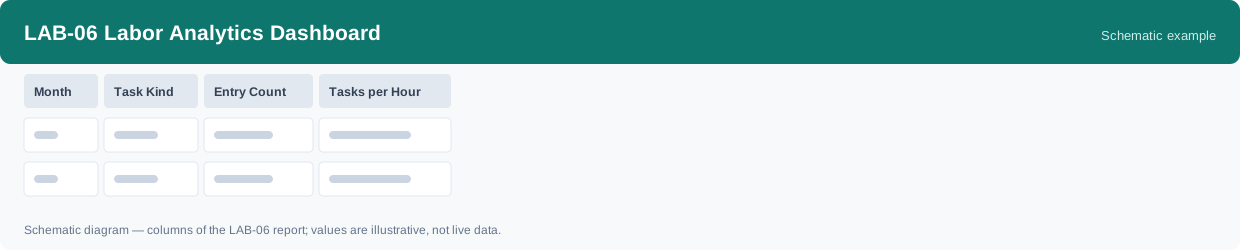
Each row is one Month and one Task Kind.
Dimensions and filters#
- Month — which month the entries belong to
- Task Kind — what kind of work the entries cover
- Entry Count — how many time entries were counted
- Tasks per Hour — the hourly rate for that month and task kind, on the same basis as LAB-01
- Filters you can set: Date range
How to read it#
Read it as the same numbers as LAB-01, seen from above: the grouping here is month and task kind, not worker, so a change in a row is a change in the monthly rhythm of that kind of work, not a statement about any one person. Use the entry count beside the rate to judge how much activity sits behind a month before comparing months.
Typical uses#
- Watch the monthly rhythm of each task kind at dashboard level
- Decide which task kind deserves a per-worker drill-down in LAB-01
- Compare months for one task kind together with its entry count
Reports features used in this article: pick this report in Reports, set the date range or warehouse filter and click Run to see the result; use Export to download the result as a CSV file; or use Subscribe to have the same view sent to your inbox on a schedule.
Note on subscriptions: your subscription and its filters are saved right away. Scheduled email delivery is being switched on in stages — sending starts as soon as delivery opens for your organization.